Mouse Polling Rate Test Not Showing 8KHz? Fix the Common Causes
A practical troubleshooting guide for when a mouse is set to 8000 Hz but the vendor utility, browser checker, or game does not show the expected result.

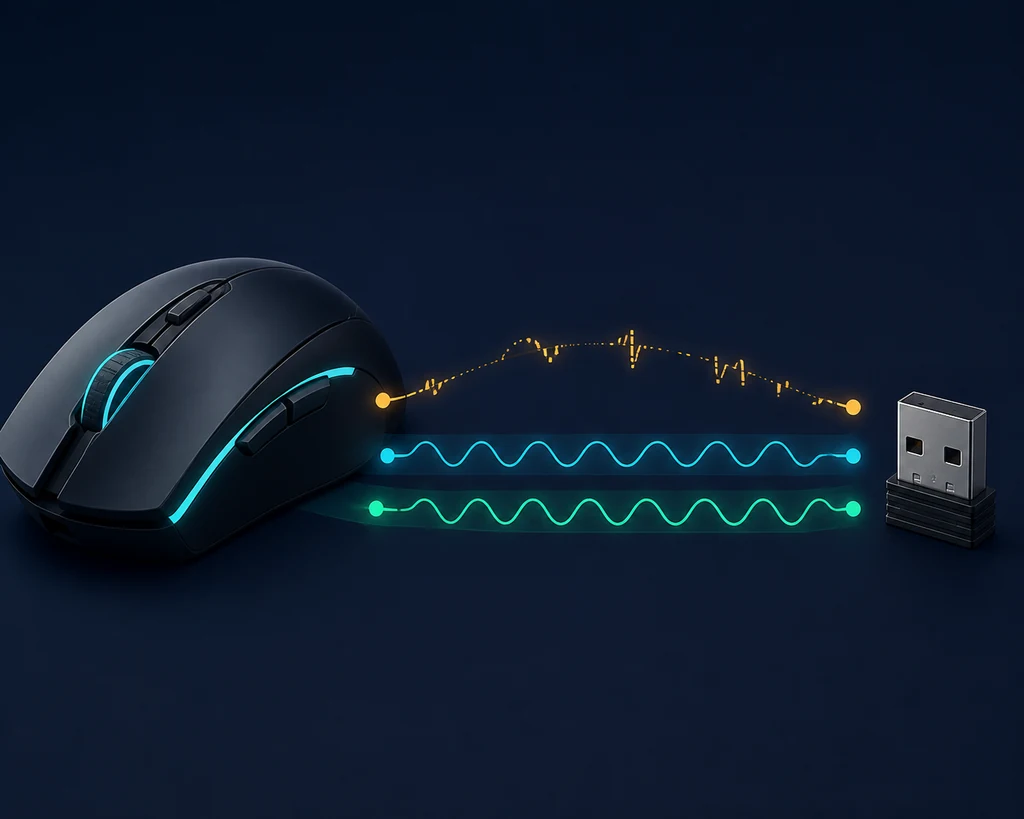
Editorial illustration: an 8000 Hz setting is useful only when the profile, connection, checker, and game remain stable.
Quick Answer
If mouse polling rate test software is not showing 8KHz, do not start by changing DPI or sensitivity. First confirm that the 8000 Hz value is saved to the active mouse or receiver profile. Then test the receiver or USB path, battery state, browser sample, and real-game frame pacing. If 8000 Hz remains unstable, a repeatable 1000 Hz or 2000 Hz result is usually more useful than a larger number that cannot be reproduced.
Contents
What It Means When a Mouse Polling Rate Test Does Not Show 8KHz
An 8000 Hz option can refer to the value selected in a desktop utility, the profile stored on the mouse, the receiver mode, or the rate observed by a browser test. Those are related but not identical checkpoints. A utility can display a chosen value even when the active profile was not saved, while a browser can report a lower or uneven sample even when the device is configured correctly.
The first question is therefore not “Is my mouse broken?” but “Which layer is failing?” If the vendor utility cannot select or save 8000 Hz, start with the model, firmware, receiver, and software support. If the utility shows 8000 Hz but the browser result fluctuates, investigate the connection and sampling conditions. If the browser is stable but the game stutters, the limiting layer may be frame time or CPU load rather than the mouse itself.
Keep DPI, Windows pointer speed, and in-game sensitivity out of this first diagnosis. The mouse polling rate guide explains the difference between those settings; this page focuses on the narrower 8KHz detection and stability problem.
Check the Active Mouse Profile and Firmware First
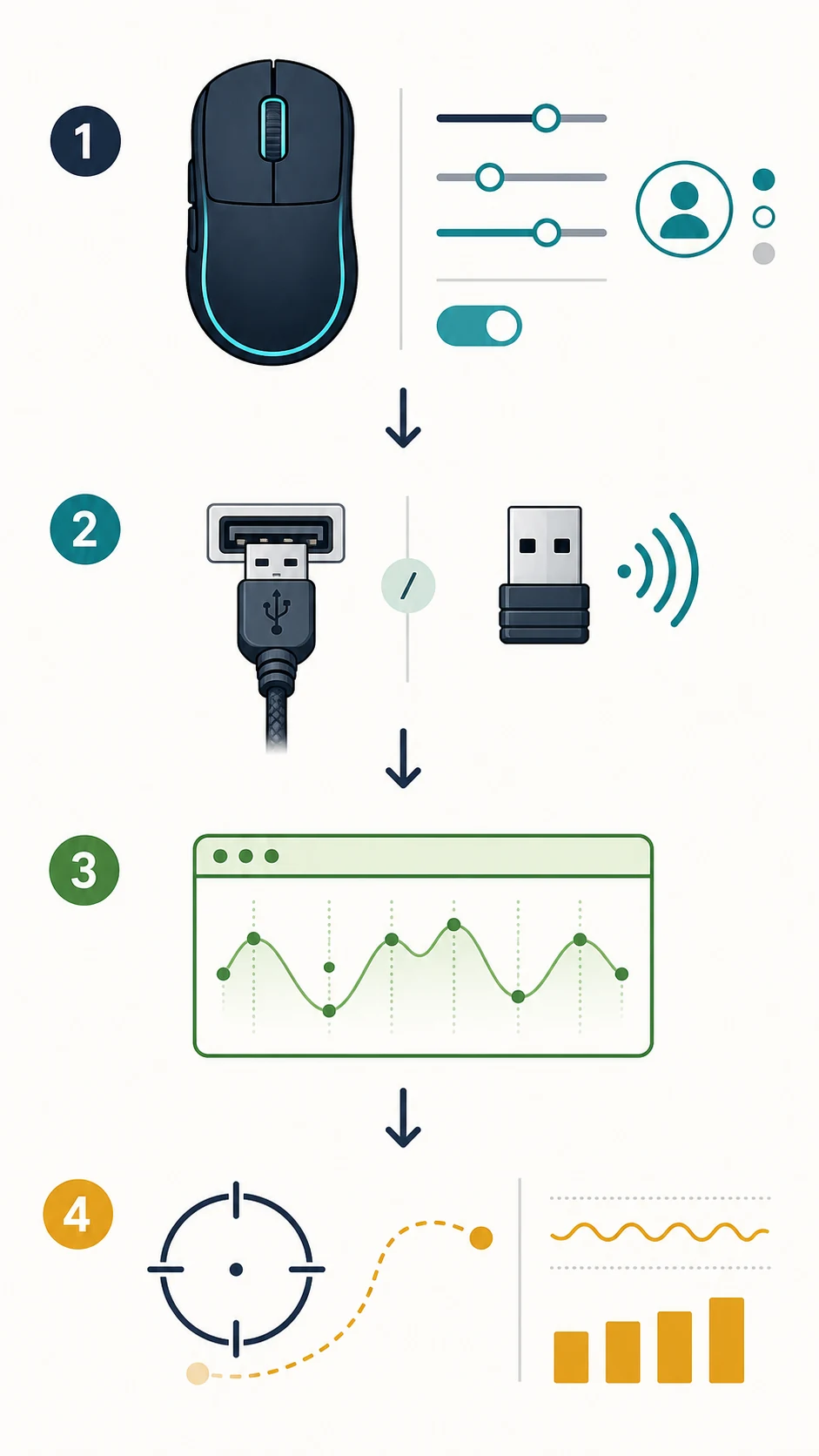
Open the manufacturer utility and confirm that it recognizes the exact mouse model and the correct receiver. Some software shows a high polling option for a compatible family, but the selected value still has to be written to the active device or onboard profile. Save the setting, switch away from the profile, return to it, and check whether 8000 Hz is still displayed.
If the setting disappears after a restart, the change may have been applied only to a temporary desktop profile. Reconnect the receiver, update the official utility or firmware when the vendor provides a supported update, and repeat the save process. Avoid installing random polling-rate tools or firmware from mirror sites; an unrelated utility can make a device look misconfigured while adding a separate safety risk.
For a useful test note, record the mouse model, receiver model, utility version, firmware version, connection mode, and selected rate. This makes it easier to distinguish a missing feature from a setting that was never committed.
Profile check
Select the correct device, set 8000 Hz, save the active profile, restart the utility, and confirm the value again before opening a browser checker.
Clean Up the USB or Wireless Connection
High polling modes create more frequent input reports, so the connection path matters. For a wired mouse, test a direct motherboard USB port instead of a hub, monitor passthrough, or keyboard port. For a wireless mouse, place the receiver close to the mouse, charge the battery, and use the vendor’s recommended receiver extension or dock if one is supplied.
Do one comparison with the mouse wired if the model supports wired operation. If the wired test reaches a stable high rate but the wireless test does not, the likely problem is receiver distance, battery behavior, interference, firmware, or the wireless mode—not DPI. If both paths fail in the same way, return to the active profile and software checks.
Do not change several variables during one run. Keep the same USB port, receiver position, surface, browser window, and polling setting for two or three samples. A clean baseline is more valuable than a single peak reading.
Repeat the Browser Polling-Rate Test Correctly
A browser checker is useful for spotting a broad pattern, but it is not a laboratory instrument. Browser scheduling, operating-system activity, movement speed, USB behavior, wireless power management, and the checker’s own sampling method can change the observed number. This is why a test may show a lower average or occasional spikes even when the selected profile is correct.
Use a reputable browser checker such as TestUFO Mouse Rate. Keep one browser tab open, move the mouse at a steady moderate speed, sample long enough to produce a range, and repeat the same pass at least twice. Judge the stable center of the result rather than the highest number that appears for a moment.
If the checker stays near 1000 or 2000 Hz while the vendor utility says 8000 Hz, first repeat the test with the same connection and a charged device. Then compare a lower profile deliberately. If the 1000/2000 sample is smooth and the 8000 sample is erratic, the result is evidence about stability—not proof that the mouse cannot ever send a higher report rate.
Confirm 8KHz Stability in the Actual Game
A browser reading is not the final decision for an FPS setup. Test the same mouse, game, resolution, frame cap, sensitivity, and scene at 1000, 2000, 4000, and 8000 Hz when those modes are supported. Watch frame pacing, CPU behavior, cursor or crosshair smoothness, and whether the game produces stutter under fast movement.
If 8000 Hz looks impressive in a checker but the game becomes uneven, roll back to the last stable setting. The goal is consistent input through the whole path, not the largest specification on a product page. The Mouse Accuracy Game can provide a simple pointer-control check after the hardware setting is stable, while the Windows mouse sensitivity guide helps keep the operating-system layer separate.
Do not compare a high-rate run with a different DPI, sensitivity, frame cap, or USB mode. If more than one setting changed, the test cannot tell you why the result moved.
| Rate | Theoretical interval | Keep if | Watch for |
|---|---|---|---|
| 1000 Hz1 ms | Stable baseline | Smooth frame time | Good fallback |
| 2000 Hz0.5 ms | Modern systems | No visible stutter | Compare repeatably |
| 4000 Hz0.25 ms | High-refresh setups | CPU has headroom | Game support matters |
| 8000 Hz0.125 ms | Specialized testing | Stable in every layer | Optional, not required |
A Reproducible Troubleshooting Checklist
Use a short log instead of relying on memory. Write down the selected rate, the number shown by the vendor utility, the connection mode, the browser range, and what happened in the game. If the value changes after each step, you have evidence about the failing layer rather than a vague feeling that the mouse is slower.
The table below is intentionally conservative. It tells you what to check next without treating a browser estimate as a permanent hardware verdict. If a lower rate is stable, keep it as your baseline while you investigate the higher mode.
| Symptom | First check | Next action | Do not assume |
|---|---|---|---|
| Utility cannot select 8000 HzModel, firmware, receiver | Verify supported hardware | Use official software | Not a DPI problem |
| Utility shows 8000; browser is lowUSB, receiver, battery | Repeat a clean sample | Compare stable range | One peak is not proof |
| Browser is high; game stuttersFrame time and CPU | Test lower rates | Keep the smooth profile | More Hz is not always better |
| Wired works; wireless failsReceiver path | Move receiver and charge | Update supported firmware | Connection is the clue |
When to Roll Back or Contact the Manufacturer
Roll back to 1000 or 2000 Hz when the high setting causes repeatable stutter, large CPU spikes, battery drain, wireless dropouts, or a browser and game result that cannot be reproduced. This is not a failed test. It is a valid stability result, and it gives you a baseline for later firmware or driver changes.
Contact support when the exact model and receiver should support 8000 Hz but the official utility cannot save it, the setting disappears after restart, or the same failure remains across a direct USB path and a clean wired comparison. Include the model, serial or receiver identifier when requested, utility and firmware versions, operating system, selected rate, and short repeatable test notes.
If your broader problem is that the mouse simply feels too fast or too slow, read the eDPI calculator and the base polling rate guide instead. 8000 Hz troubleshooting should not turn into an unplanned sensitivity rewrite.
Practical verdict
A stable 1000 or 2000 Hz profile that you can reproduce in the browser and game is a successful setup. Keep 8000 Hz only when the whole input path stays smooth.
FAQ
Related Resources
Last updated: August 18, 2026
Review Mouse Settings