How to Change Mouse Sensitivity on Windows 11 and 10
Use the correct Windows path, understand what pointer speed actually changes, and tune DPI, system speed, and in-game sensitivity without losing track of your baseline.

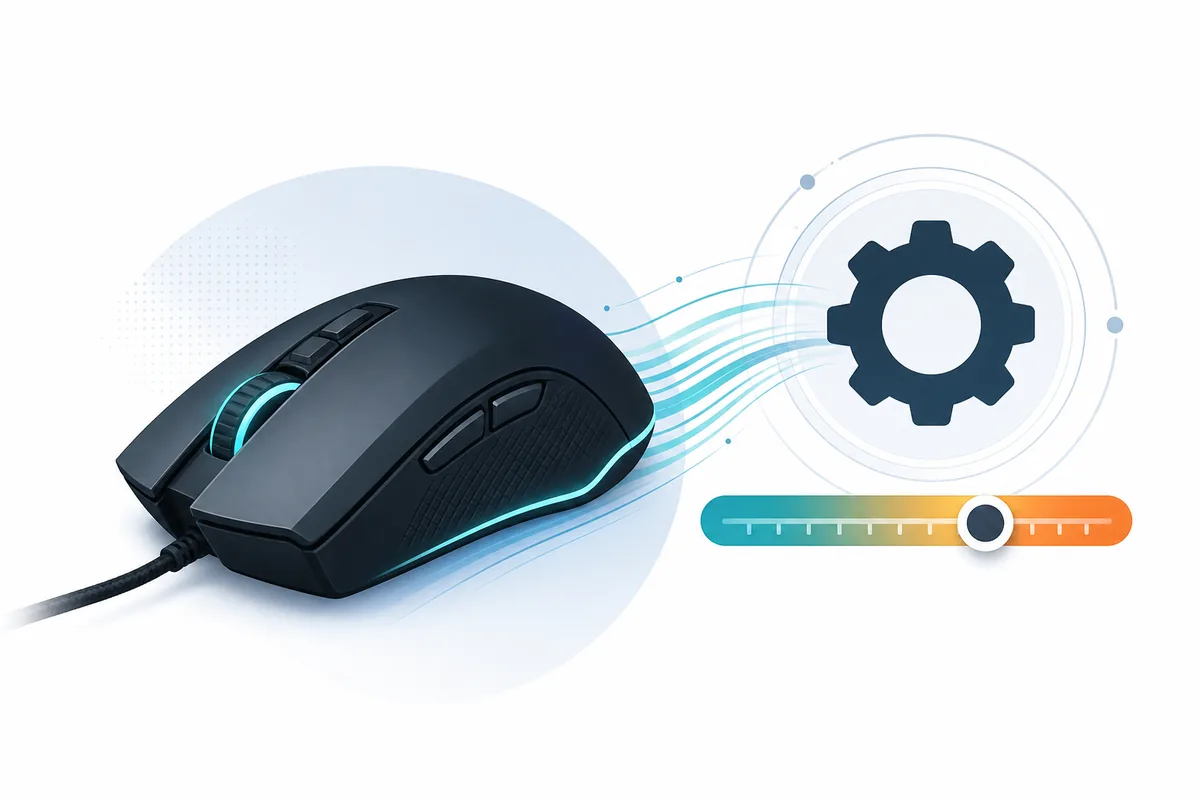
Editorial illustration, not a Windows screenshot: pointer speed is one layer of a mouse setup, alongside hardware DPI and in-game sensitivity.
Quick Answer
To change mouse sensitivity on Windows 11, open Settings → Bluetooth & devices → Mouse, then move Mouse pointer speed. On Windows 10, use Settings → Devices → Mouse → Cursor speed. Change one step at a time. For gaming, remember that Windows pointer speed, mouse DPI, and in-game sensitivity are separate controls; keep two stable while testing the third.
Contents
How to Change Mouse Sensitivity in Windows 11
Press Windows + I to open Settings. Select Bluetooth & devices, choose Mouse, and find the Mouse pointer speed slider. Move it by a small amount, return to a familiar desktop area, and repeat the same movement. A controlled change is easier to judge than dragging the slider from one extreme to the other.
If you searched for how to change mouse sensitivity on Windows, this pointer-speed control is the direct system answer. It does not replace the DPI button or software on the mouse, and it does not guarantee that a game using raw input will change.
You can also open Start and search for “mouse settings.” The wording may vary slightly after a Windows update, but the useful destination is the Mouse page that contains pointer speed, primary button, scrolling, and related settings. Microsoft documents the current mouse-setting controls on its official Change mouse settings page.
Do not judge the new setting only by whether the cursor feels fast. Check whether you can stop on a small icon, select text without correcting twice, and move across the screen without lifting the mouse unexpectedly. Those tasks reveal overshoot, undershoot, and desk-space problems more clearly than speed alone.
For a clean baseline, write down the pointer-speed position before changing it. Windows does not give every slider position a friendly named preset, so a screenshot or short note is useful. If the new value feels worse after a game session, you can return to the baseline instead of guessing.
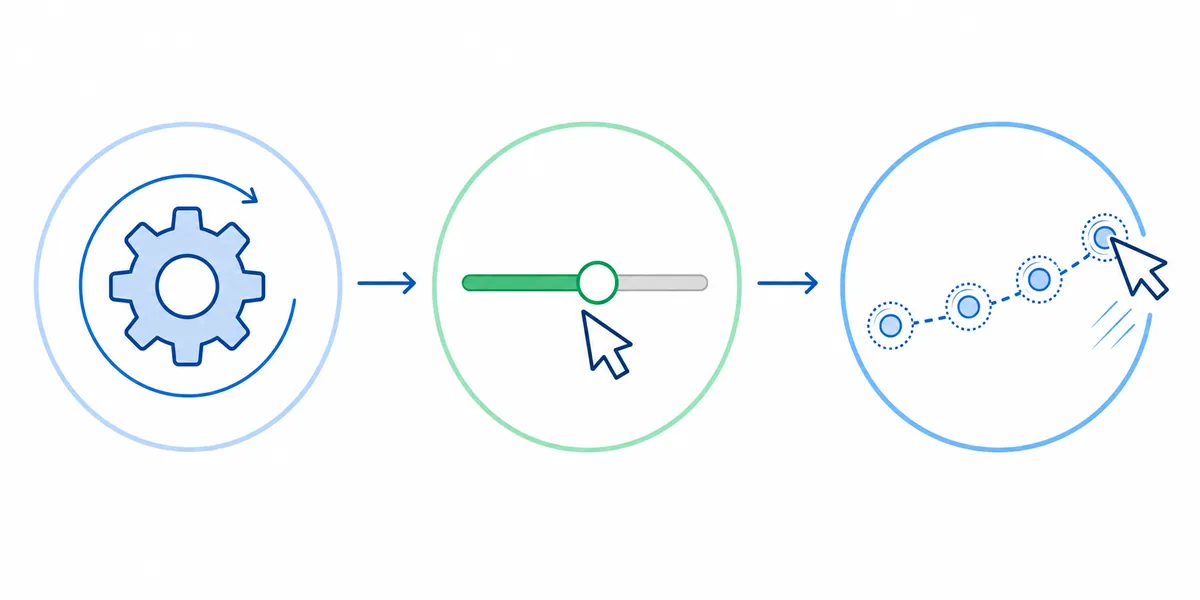
How to Change Mouse Speed in Windows 10
In Windows 10, press Windows + I, open Devices, select Mouse, and adjust Cursor speed. If that control is not visible in your build, choose Additional mouse options, open the Pointer Options tab, and change Select a pointer speed.
The classic Mouse Properties dialog is also where you may see Enhance pointer precision. Despite the name, it is an acceleration setting: the distance traveled by the pointer can depend partly on how quickly you move the mouse. That can be comfortable for ordinary desktop use, but it makes repeated physical movements less directly comparable.
If you are tuning for FPS practice, decide on acceleration once and keep the choice stable while comparing results. Turning it on and off between runs changes the movement model. Some games request raw mouse input and may bypass Windows acceleration or pointer-speed processing, so a Windows change may affect the desktop but not the game. Treat that as a software-input difference, not proof that the slider is broken.
Laptop touchpad sensitivity is a separate setting. Changing Mouse pointer speed does not necessarily produce the same change for a precision touchpad. If your test alternates between a touchpad and an external mouse, record which device you used or the comparison will be misleading.
Windows Pointer Speed vs DPI vs In-Game Sensitivity
Most confusing mouse-sensitivity problems come from changing several layers at once. Mouse DPI belongs to the sensor or mouse software. Windows pointer speed belongs to the operating system cursor. In-game sensitivity belongs to the game and its input scale. They can all change how movement feels, but they are not interchangeable numbers.
For example, raising DPI and lowering the in-game value can preserve a similar effective sensitivity in one title. Use the eDPI calculator to record that same-game relationship. If you want a physical measurement, the cm/360 calculator estimates how far the mouse travels for a full turn when DPI, sensitivity, and the correct game yaw value are known.
Windows pointer speed is different because many competitive games use raw input. In that case, a desktop cursor change may not alter the camera turn at all. This is useful: you can choose a comfortable desktop speed while keeping a stable game setting. But you must test the specific title instead of assuming every game handles input the same way.
| Control layer | What it changes | Best use | Comparison rule |
|---|---|---|---|
| Mouse DPIhardware/software | Sensor counts and the base movement sent by the mouse | Choose a stable hardware baseline that fits the device and desk | Record the exact DPI value |
| Windows speedoperating system | Desktop pointer travel and selection comfort | Change mouse speed in Windows without rewriting game settings | Compare with acceleration state unchanged |
| Game sensitivityper title | Camera or crosshair movement inside one game | Fine-tune aim after DPI and Windows choices are stable | Compare only within the same game and scale |
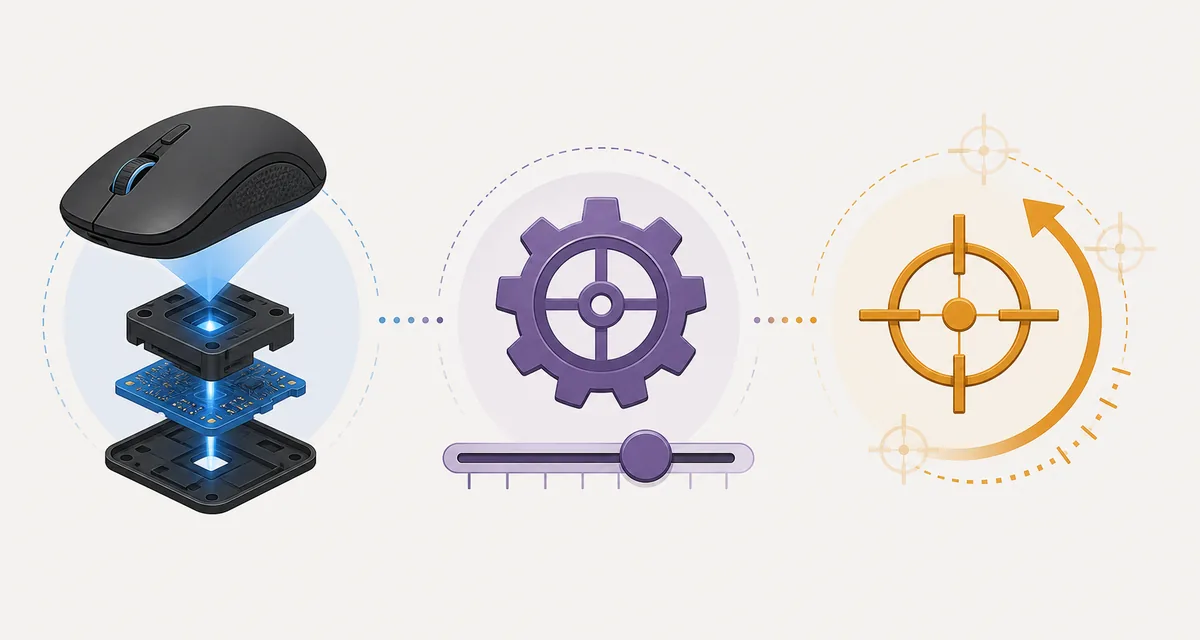
A Repeatable FPS Mouse-Sensitivity Tuning Method
Start by choosing one stable DPI value. Common numbers are not automatically better; the useful value is one your mouse supports consistently and that leaves enough adjustment range in your games. Record it, then set a comfortable Windows pointer speed for desktop work. Avoid changing both during the same test session.
Next, open one game or one browser drill and keep every other condition fixed: resolution, field of view, zoom, mouse pad area, fullscreen mode, and posture. Adjust only the in-game sensitivity. Make small changes and use the same short task after each one. A ten-minute repeatable test provides more information than an hour of random slider movement.
Use the mouse accuracy game for a simple stop-control check, then use BallSheet or the BallSheet pro plays guide to review cursor paths under pressure. These are practice signals, not universal scientific scores, so compare only runs made with the same device, browser, and display setup.
Change a value only when you can name the problem. If you consistently overshoot small targets, reduce the active layer slightly. If you run out of desk during wide turns, increase the game sensitivity or reconsider the DPI baseline. If desktop movement is uncomfortable but the game feels correct, adjust Windows speed and verify that the game uses raw input before touching the game value.
Keep a short log with date, DPI, Windows pointer-speed position, acceleration state, game sensitivity, and one observation. The observation should be concrete, such as “overshot close targets” or “needed two mouse lifts for a 180-degree turn.” This prevents a new setting from winning simply because it feels novel.
One-variable rule
Keep DPI, Windows pointer speed, and in-game sensitivity as separate records. Change only one layer, repeat the same task, and keep the new value only when it solves a named problem.
Common Mouse-Sensitivity Problems and What to Change
If the cursor is too fast everywhere, lower Windows pointer speed one step and test again. If only one game is too fast, leave Windows alone and lower that game's sensitivity. If the desktop feels fine but a new high-DPI mouse feels uncontrollable in every application, confirm the hardware DPI profile before changing software settings.
If the pointer movement feels inconsistent, check whether Enhance pointer precision is enabled, whether mouse software switches DPI profiles automatically, and whether the game uses raw input. Also check Windows display scaling and multiple-monitor layouts: they can change the visual distance the cursor must cross even when the physical input remains the same.
If your result changes after every restart, the mouse utility may be loading a different onboard profile. Save the chosen DPI to onboard memory when the device supports it, or make sure the correct profile launches with Windows. Do not assume the operating-system slider controls a hardware DPI button.
If you cannot get enough control at the low end, use a larger mouse pad, lower DPI, or lower the game value. If you cannot turn far enough, raise only the layer responsible for the problem. Extremely high or low values are not badges of skill; a useful setup is one you can reproduce and explain.
FAQ
Official Source and Related Tools
Last updated: July 29, 2026
Practice with BallSheet